Bought Together
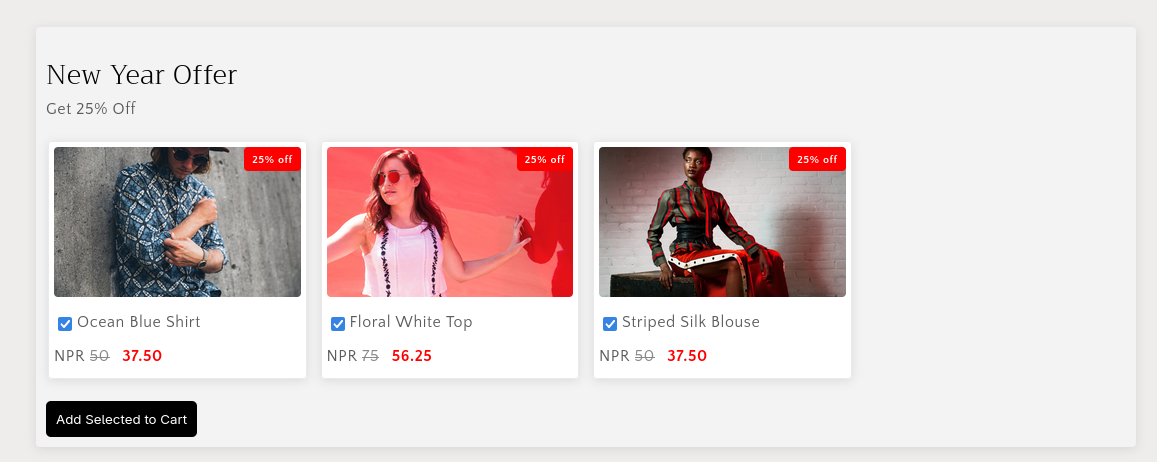
Use Bought Together to create compelling bundle offers that encourage customers to purchase multiple products together. You can offer a variety of discounts such as percentage off, fixed amount off, free shipping, or Buy X Get Y (free or discounted). These offers are only triggered when both the trigger product(s) and offer product(s) are present in the cart. You can display the offer on the product page, cart page, or in the add-to-cart popup.
Step 1: Enable the App Embed
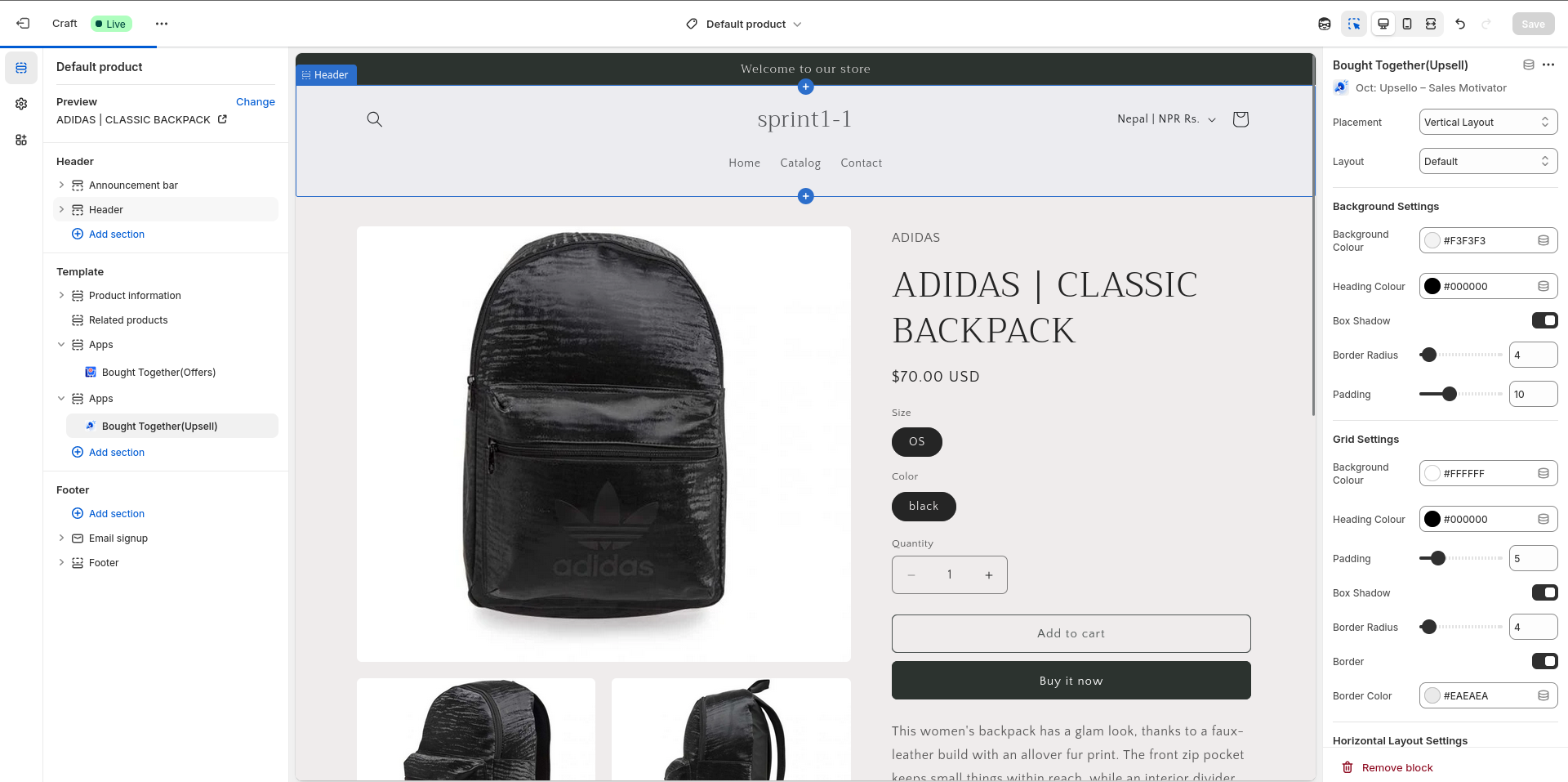
Begin by clicking on the Bought Together section in the app sidebar. If prompted with a callout card to enable the app, click the Activate button. This will redirect you to the Shopify theme editor where the app block is automatically added to the product page.
- In the theme editor, configure the layout style—either vertical or horizontal.
- Customize the appearance of the offer block to match your storefront design.
- Once styled, click Save to publish changes.
Step 2: Create a New Offer
Return to the app and click on the Add New button to begin creating a new Bought Together offer.
- Enter a name for the offer and set its status (active/inactive).
Step 3: Configure Trigger Settings
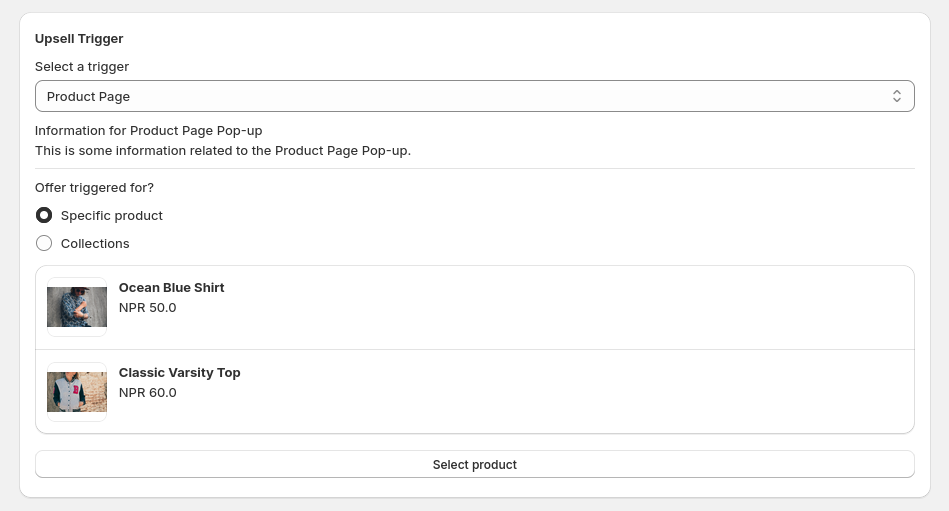
Choose where and when the offer should appear based on the trigger.
- Select the trigger location: Product Page, Cart Page, or Add to Cart Popup.
- Choose specific products or collections that will activate the offer.
Step 4: Set Offer Products
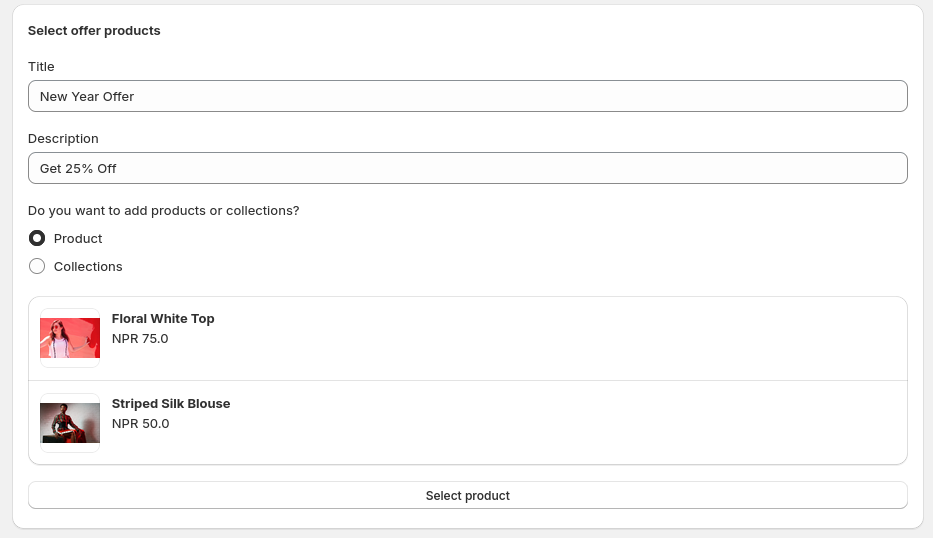
Define the products that will be shown as part of the offer.
- Enter a title and description for the offer. This will be shown on the storefront offer section.
- Select the products or collections to offer with the discount.
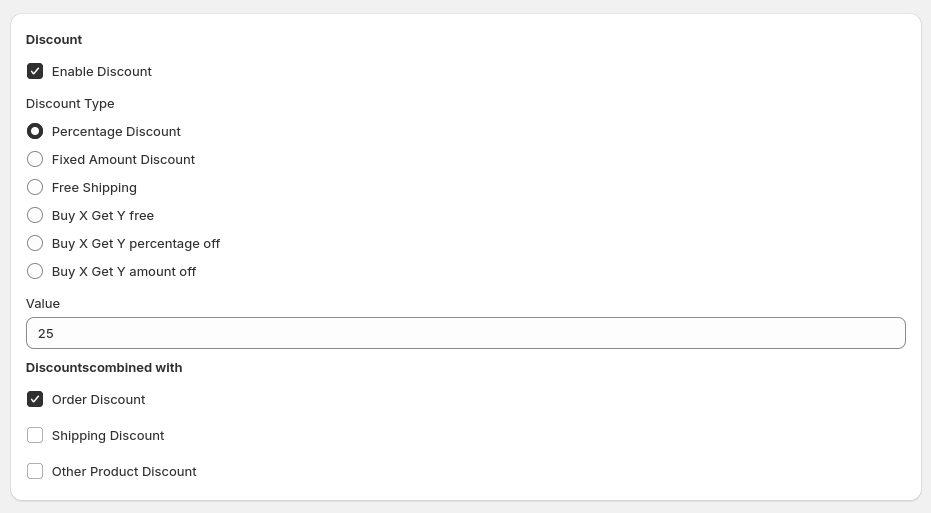
Step 5: Set Discount
Choose the discount type and rules for combining with other promotions.
- Enable the Discount toggle and select from: Percentage Off, Amount Off, Free Shipping, Buy X Get Y Free, Buy X Get Y % Off, or Buy X Get Y Amount Off.
- Configure the discount value and combination settings (e.g., allow with shipping discounts).
Step 6: Set Rule Duration
Specify the timeframe for which this offer will remain active.
- Define the start date and end date for the offer validity period.
Step 7: Test on Storefront
Visit your storefront and navigate to one of the trigger products to verify the Bought Together offer is displaying correctly.
- Ensure the styling and positioning matches what you configured in the theme editor.
- Add the trigger and offer products to cart to verify the discount is applied as expected.