Offer Popup
The Offer Popup feature is designed to highlight ongoing offers in your store using eye-catching popups. You can choose between a default layout and a minimal layout with a countdown timer to ignite urgency. We also provide a variety of templates that you can use as-is or customize to match your brand.
Step 1: Enable the Offer Popup Module
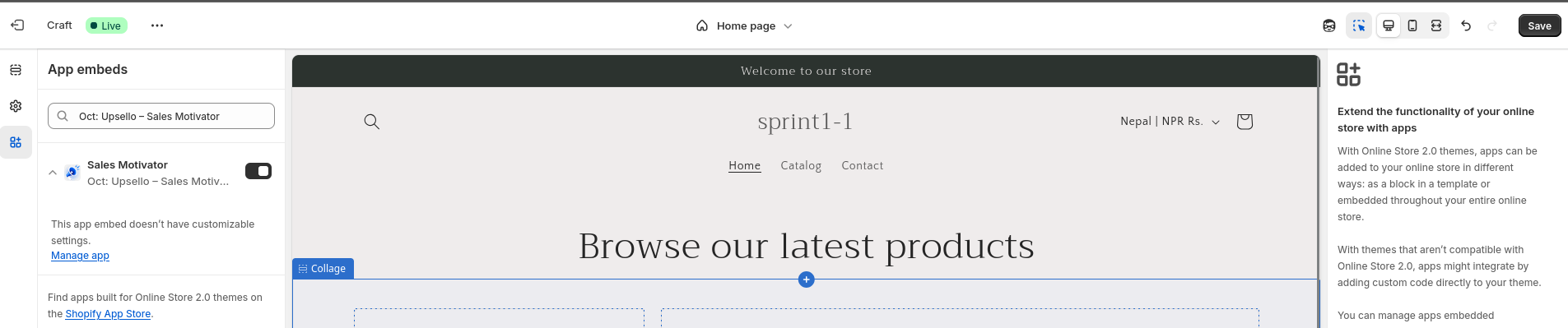
Navigate to the Offer Popup section in the app sidebar. If you see a callout card asking you to enable the module, click the Activate button. This will redirect you to the Theme Customization page with our app embed already selected. Simply click Save.
Step 2: Create a New Offer Popup
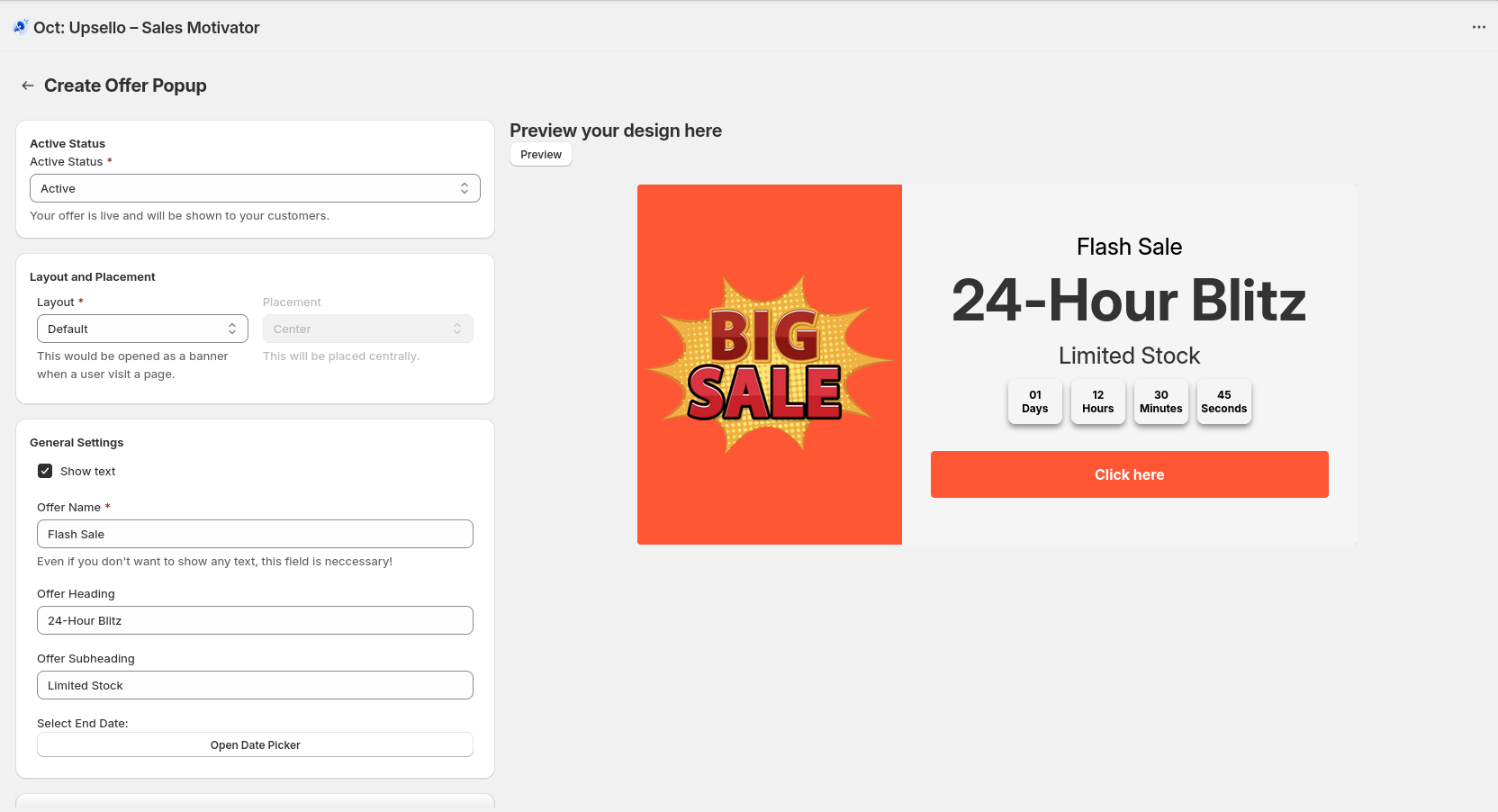
Return to the app and click on the Create New button to configure your popup.
- Set the status (active/inactive), layout (default or minimal), and placement of the popup.
Step 3: General Settings
Enter the basic information that will appear on the popup.
- Add an Offer Name, Heading, Subheading, and End Date.
Step 4: Media and Button Configuration
Choose whether to enable a button or image in the popup.
- If enabled, set the button text and URL.
- For the image, provide the image URL, choose its placement, and set the object-fit value.
Step 5: Design Customization
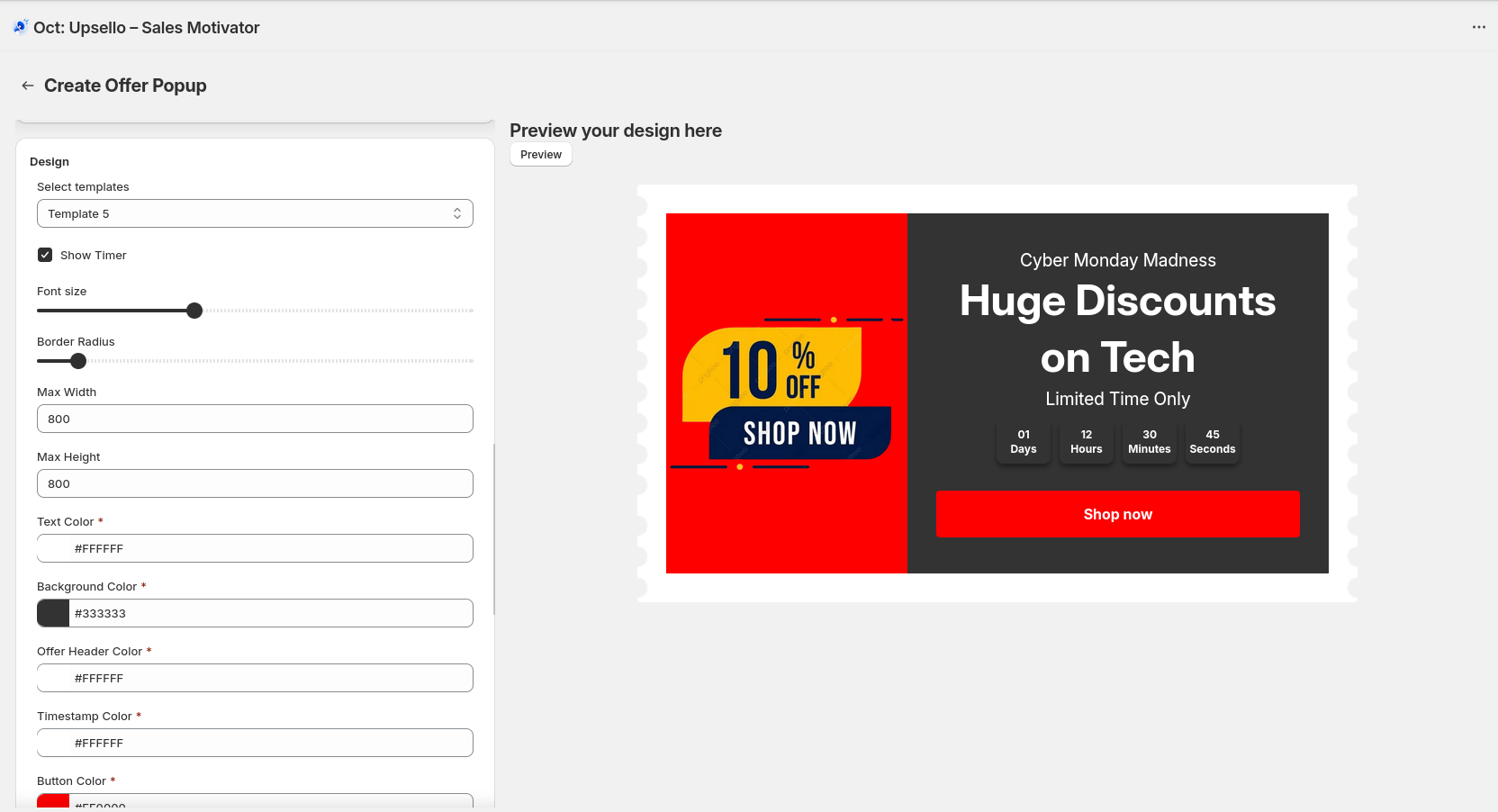
Choose from pre-designed templates or create a custom popup design.
- Customize font size, border radius, max width & height.
- Set text color, background color, header color, button color, and box shadow.
Step 6: Set Timing
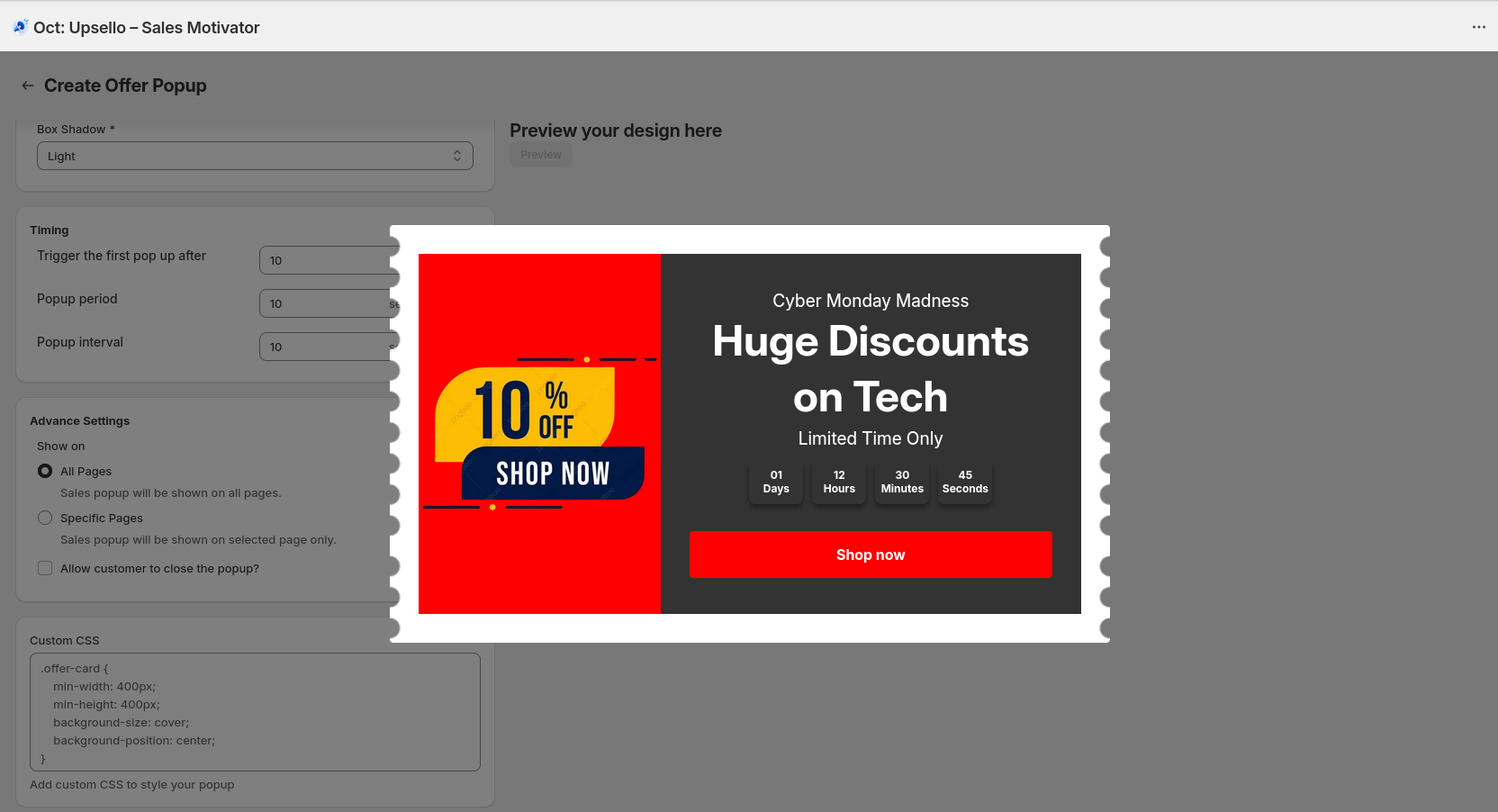
Define when and how frequently the popup should appear.
- Set the initial display delay, display duration, and repeat interval for recurring popups.
Step 7: Advanced Settings
Further refine where and how the popup appears.
- Choose whether to show the popup on all pages or only specific pages.
- Allow or restrict customers from closing the popup until the popup duration ends.
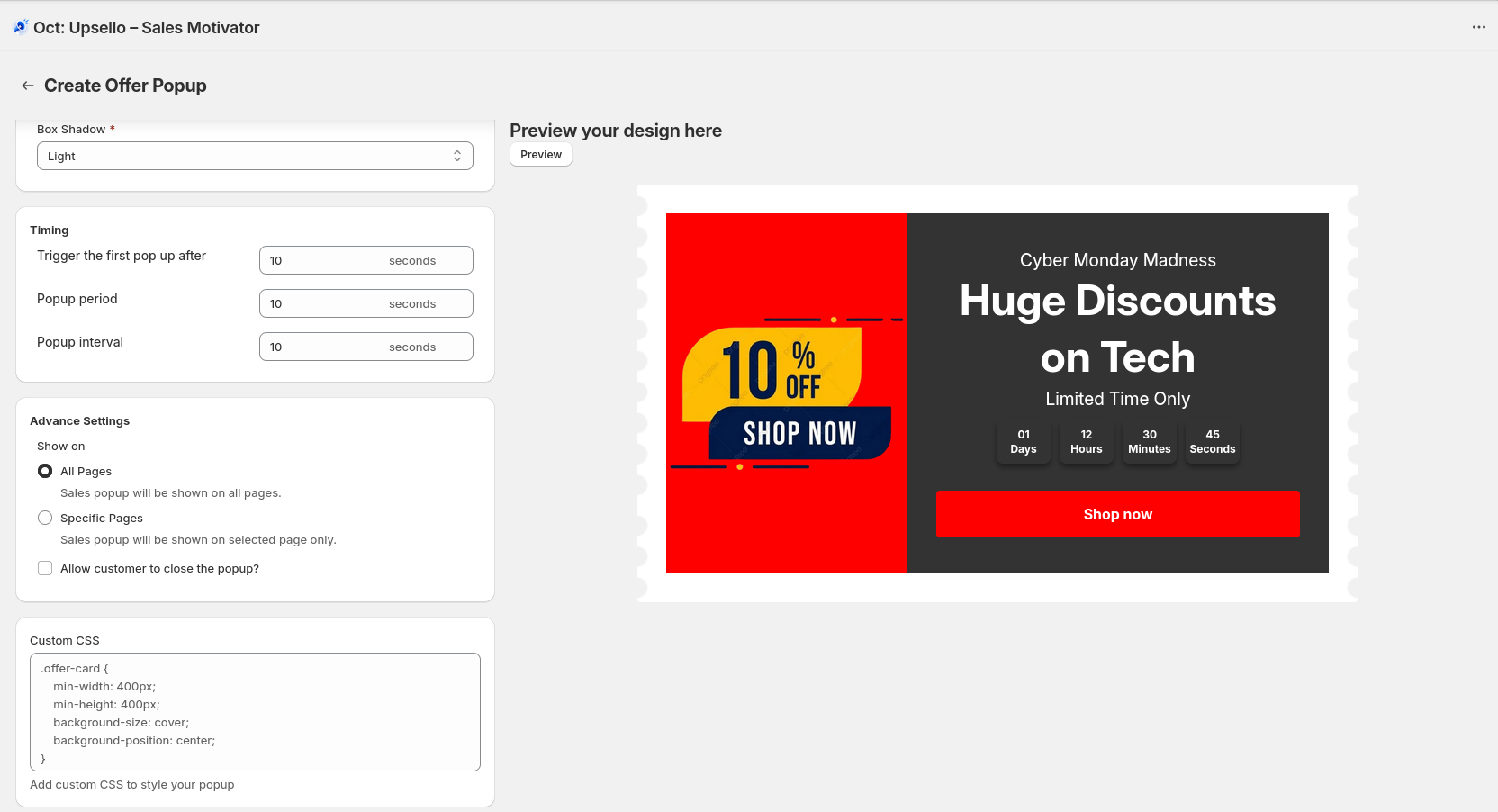
Live Preview
While creating your popup, you can preview it live within the app. There’s no need to open your storefront separately to see how it will look.