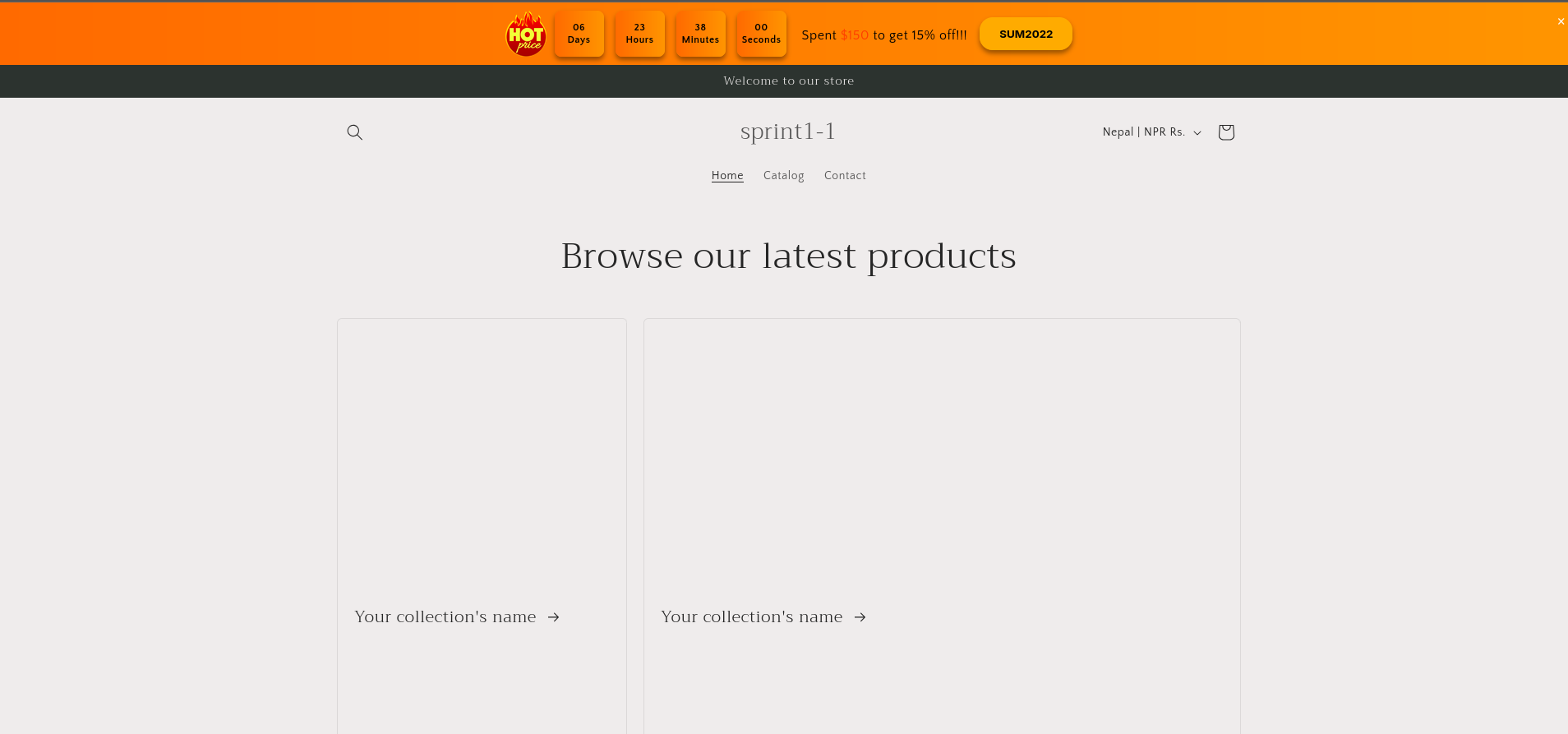
Notification Bar / Announcement Bar
The Notification Bar (also known as the Announcement Bar) is a simple yet powerful way to promote offers, campaigns, or messages to customers. It displays a banner either at the top or bottom of the page, making it highly visible and effective.
Step 1: Enable Notification Bar
Go to the Notification Bar section in the app sidebar. If a callout card asks you to enable the feature, click the Activate button. You’ll be redirected to the Theme Customization page with the app embed already selected. Just click Save.
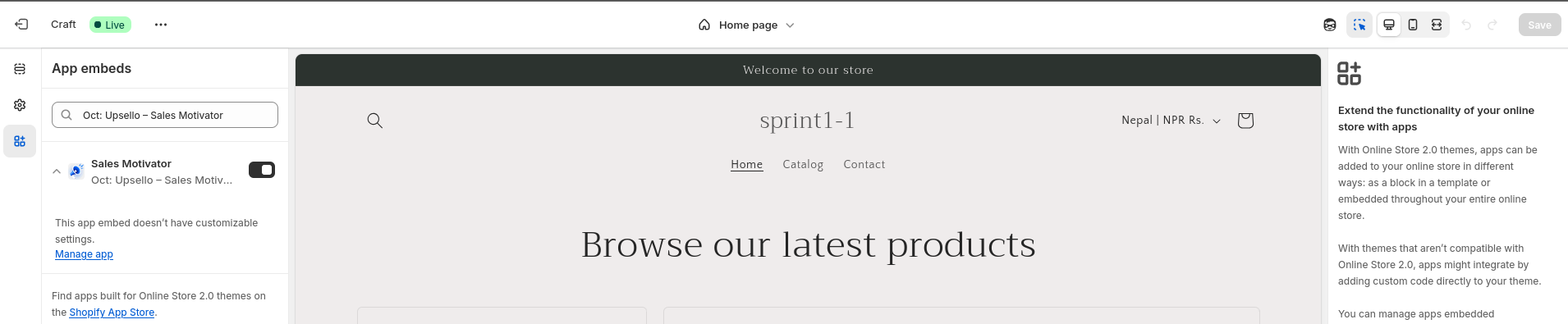
Step 2: Create a New Bar
Return to the app and click on Create New. You will see two bar types to choose from:
- Basic Notification Bar: Displays a static message with no goal or discount functionality.
- Discount Progress Bar: Tracks cart or purchase goals, dynamically updates progress, and applies discounts automatically.
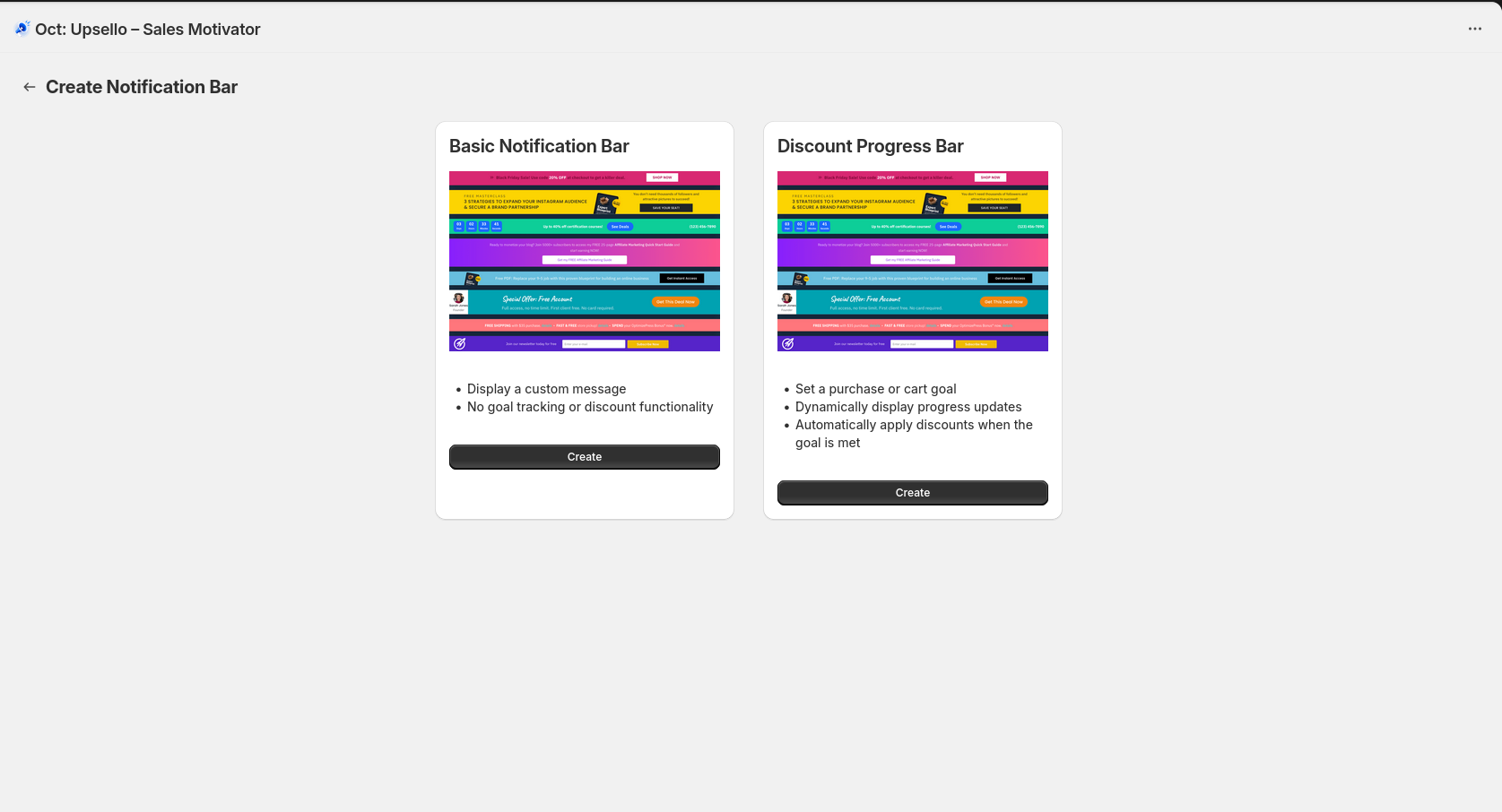
Step 3: Configure the Bar
For Basic Notification Bar:
- Set the status (active/inactive).
- Enter the initial message.
- Define the date range during which the bar should be visible.
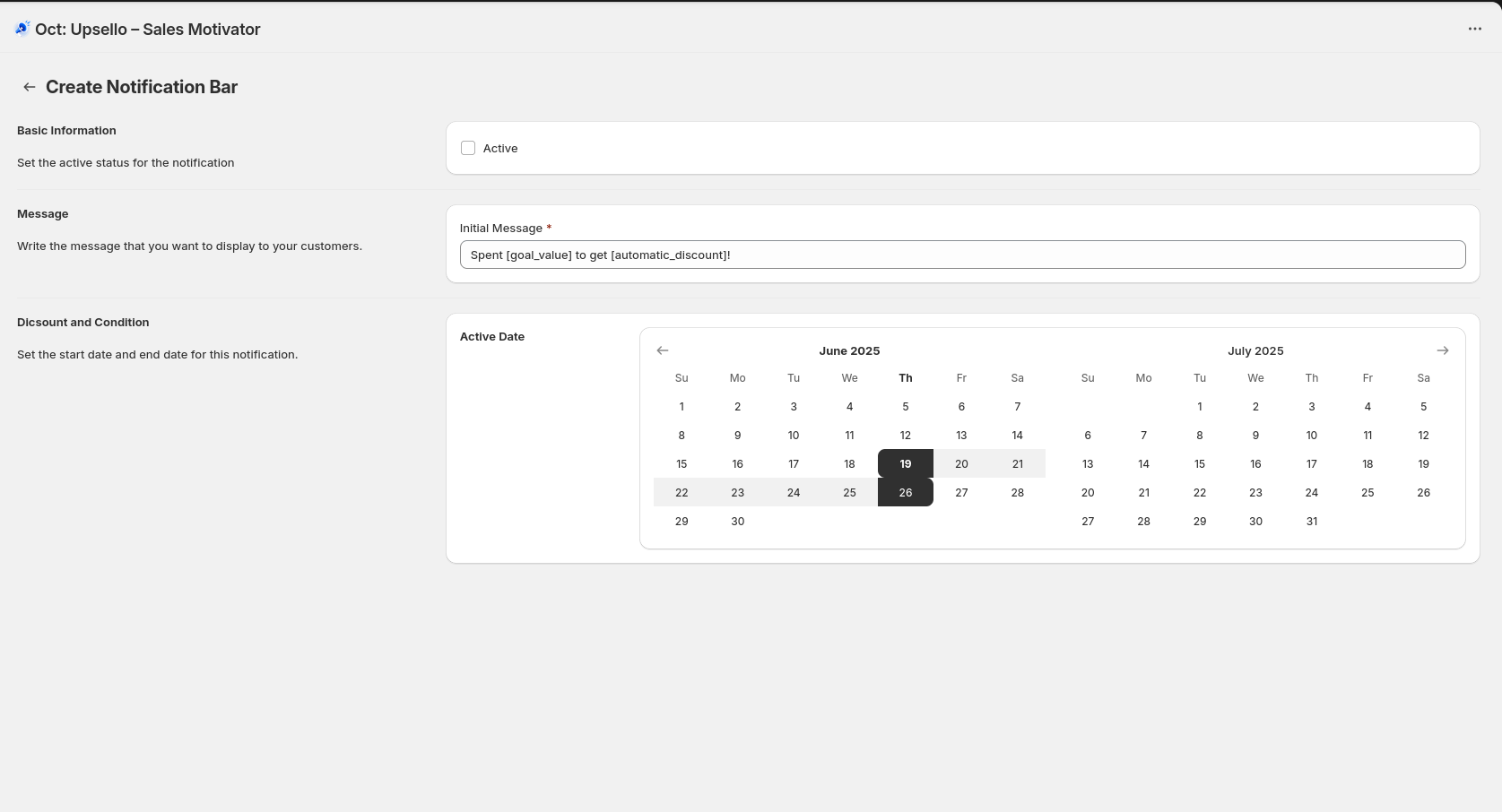
For Discount Progress Bar:
- Set the status.
- Define the goal (cart value or product quantity).
- Write the initial message, motivator message, and congratulations message.
- Enable discounts: choose Free Shipping, Percentage, or Fixed Amount discount and configure accordingly.
- Set the date range for the discount.
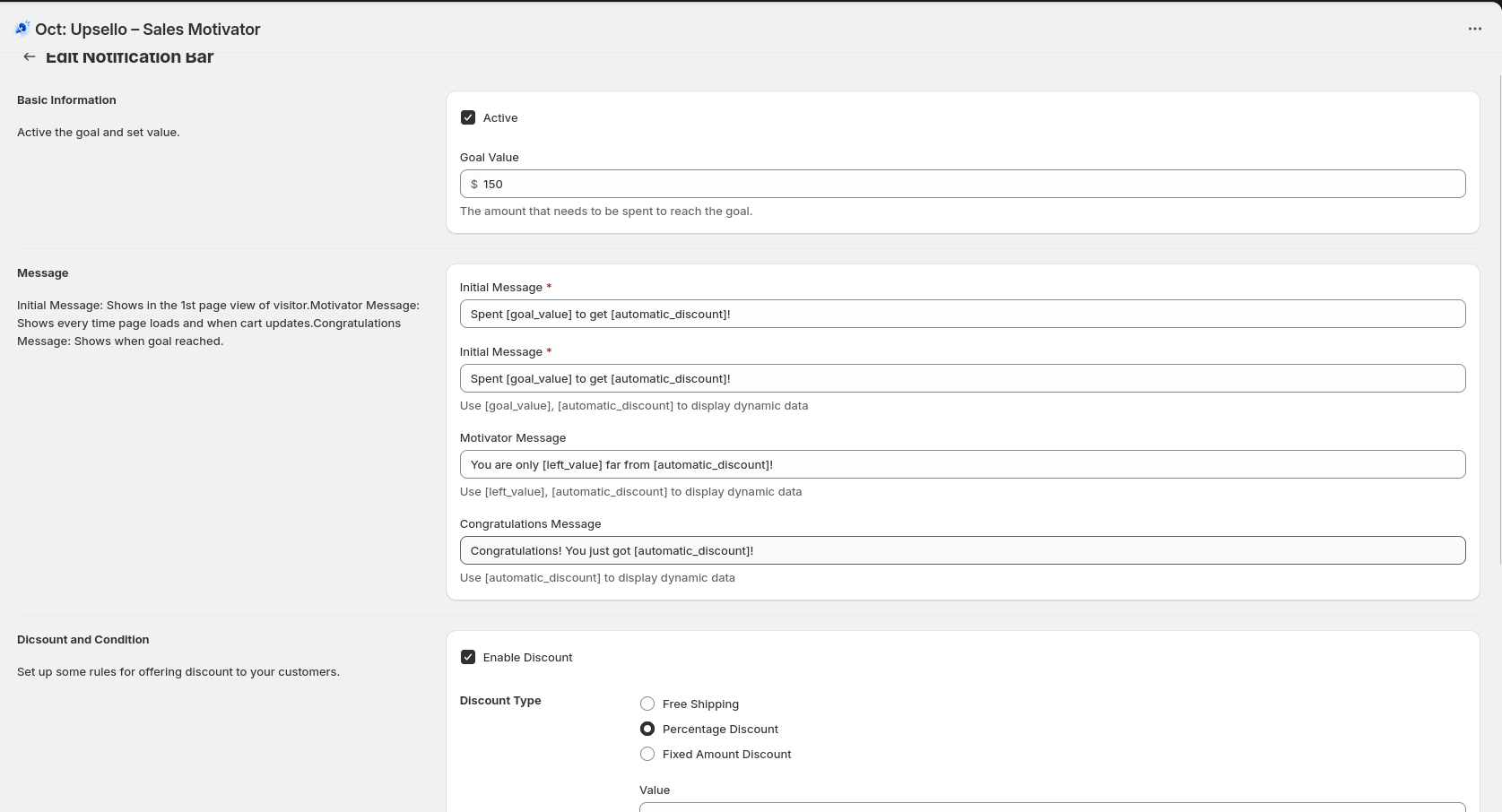
Click Save to proceed to the visual settings page.
Step 4: Choose or Customize Design
On the visual settings page, you can either:
- Create a new design from scratch
- Select from existing designs
- Use one of our ready-made templates and customize it
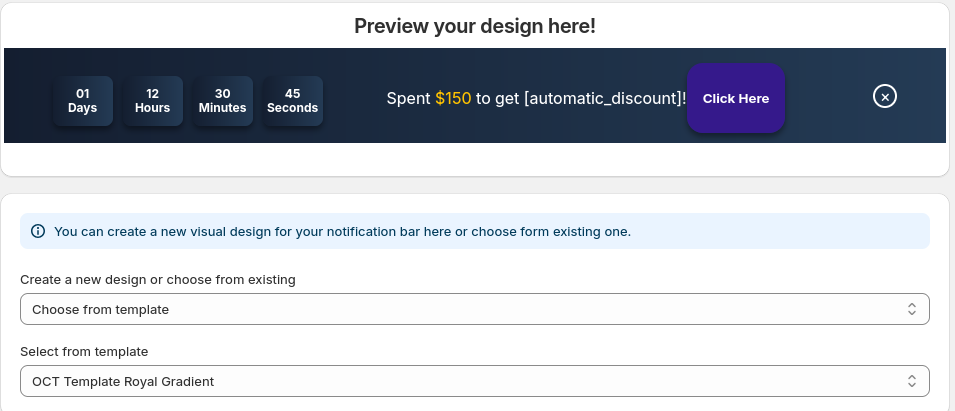
Set the bar placement (top or bottom), visibility duration, and whether the user can close the bar.
Step 5: Visual Settings
Enable or disable the following components based on your needs:
- Timer
- Header
- CTA (Call-to-Action) Button
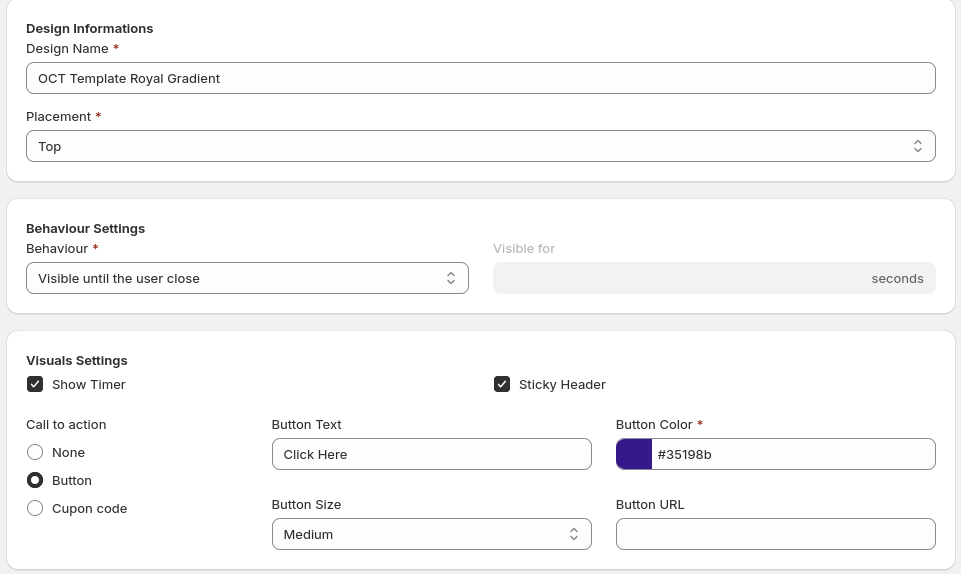
Step 6: Style the Bar
Customize the appearance of the bar to match your store’s branding:
- Bar size
- Font size
- Balance color
- Background color or gradient
- Optional: Background image URL
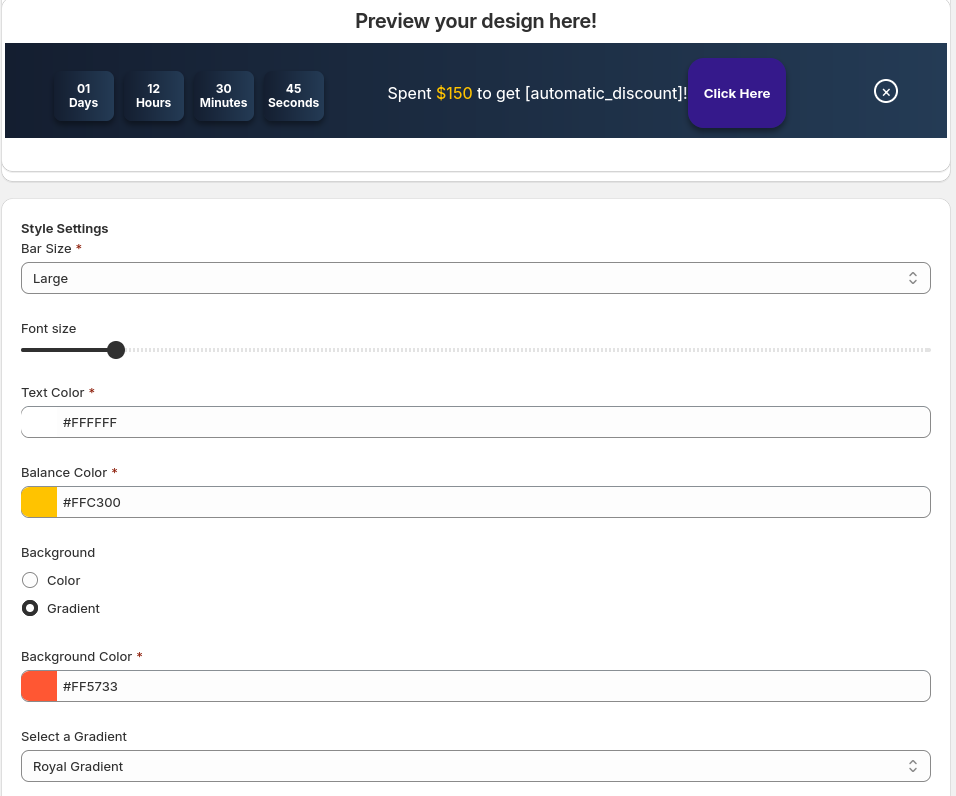
Live Preview
You can preview your bar design directly inside the app before publishing. This eliminates the need to check the storefront.
This is how the notification bar will appear on the storefront.