App Lock
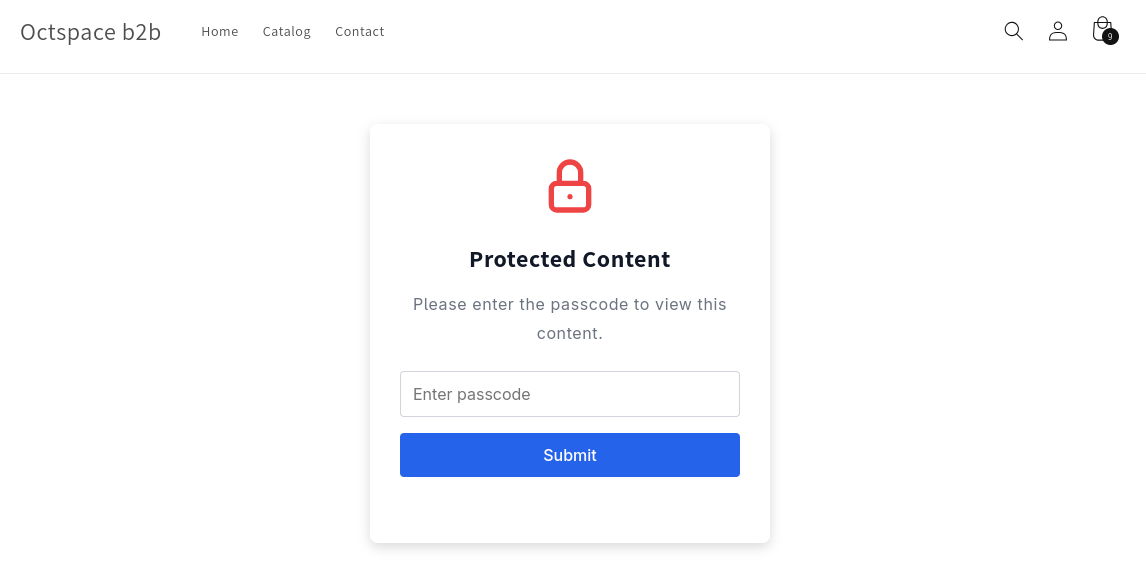
The App Lock feature allows merchants to restrict access to specific parts of their store based on customer identity, passcodes, or secret links. It's ideal for offering exclusive content to specific users or creating secure access flows for wholesale customers.
Step 1: Create and Configure a Lock Rule
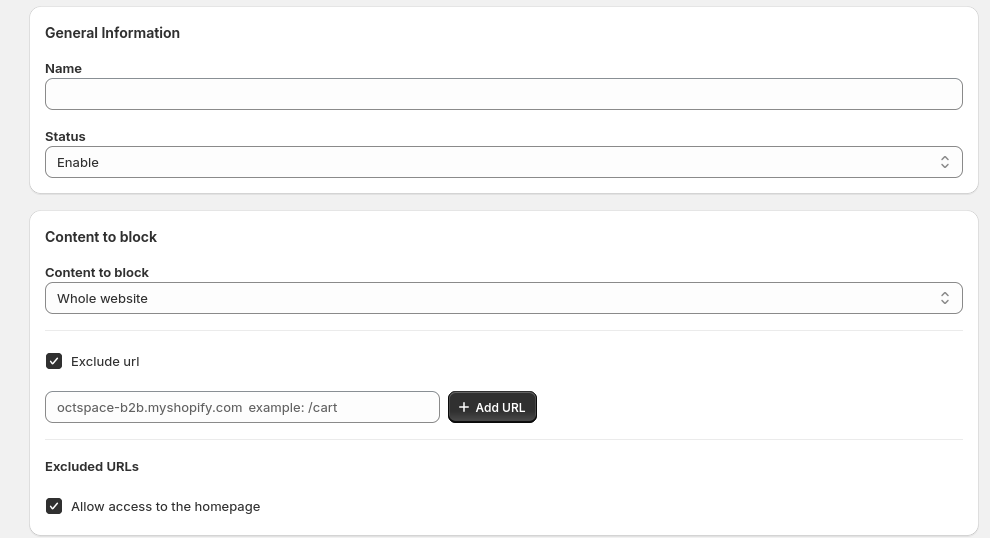
Go to the App Lock section from the app sidebar and click Create New Rule. Start by entering general details and choosing the content you want to restrict.
- General Info: Enter a rule name and set the status (Active/Inactive).
- Content to Lock: Choose whether to lock the entire store, specific products, collections, or pages.
- Exclude URLs: Optionally exclude pages like the homepage from being locked.
Step 2: Set Access Rules
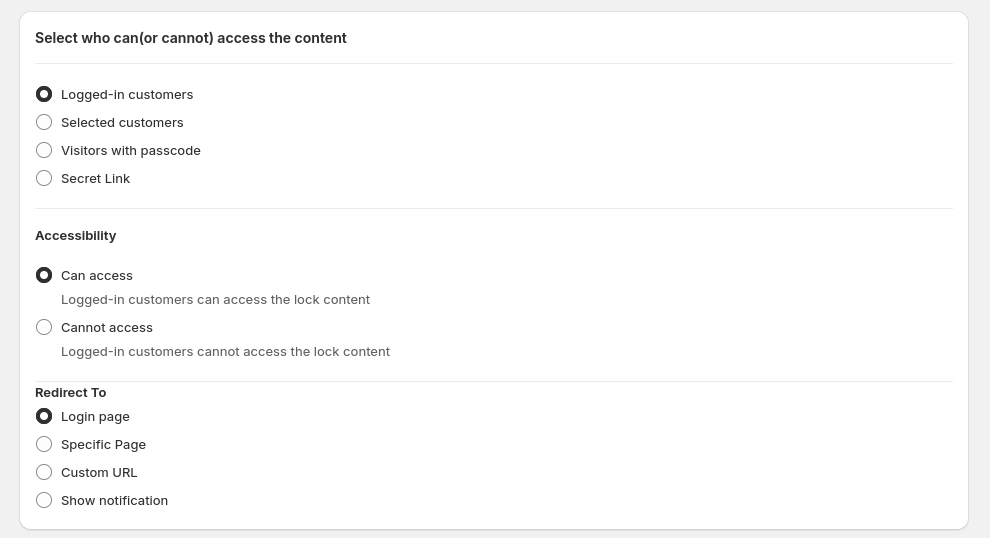
Choose who can access the locked content and define what should happen for users who cannot.
- Access Control: Limit access to logged-in customers, specific customers by tag or email, or use passcode/secret link.
- Unauthorized Handling: Redirect unauthorized users to:
- Login Page
- Custom Page (e.g., FAQ or Access Request)
- Custom URL
- Or simply show a notification or message
Step 3: Enable and Test on Storefront
Activate the rule and verify that it works correctly on your storefront.
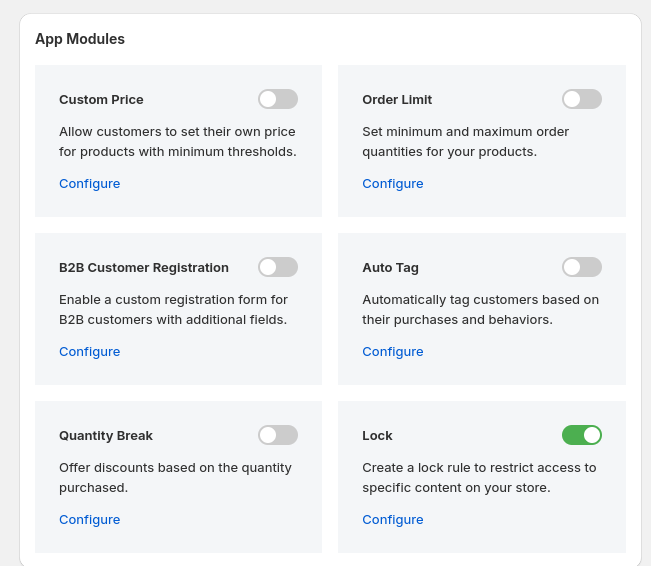
- Enable App Lock from the App Modules section on your dashboard.
- Ensure the app embed is active under Theme App Extension Configuration.
- Visit your storefront as both an authorized and unauthorized user to confirm that the locking behavior is working as expected.