Brevo Integration
Integrate your store with Brevo to automatically sync customers and send emails through your Brevo account. Follow the steps below to generate your API key and connect it in the app.
Step 1: Get Brevo API Key
- Log in to your Brevo account.
- Click on your avatar (top-right corner) and go to SMTP & API.
- Navigate to the API Keys tab.
- Click Generate a New API Key and give it a name (e.g., "B2B Integration").
- Copy the generated API Key. You will need it in the next step.
Step 2: Add Brevo API Key to the App
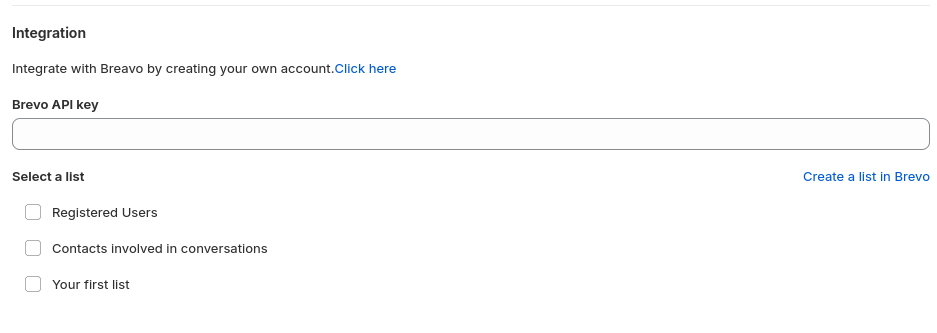
Connect your Brevo account to the app by inserting your API key in the integration section.
- Go to the Customer Management sidebar and click on the Settings & Integrations tab.
- Under the Integration section, locate the Brevo API Key field.
- Paste your Brevo API key into the field.
- Once the key is saved, the app will fetch your available Brevo lists.
- Select the list where customers should be assigned upon registration.