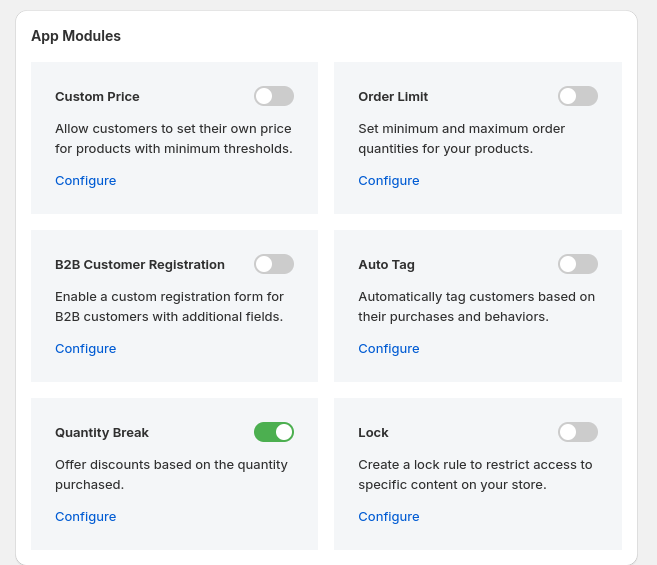
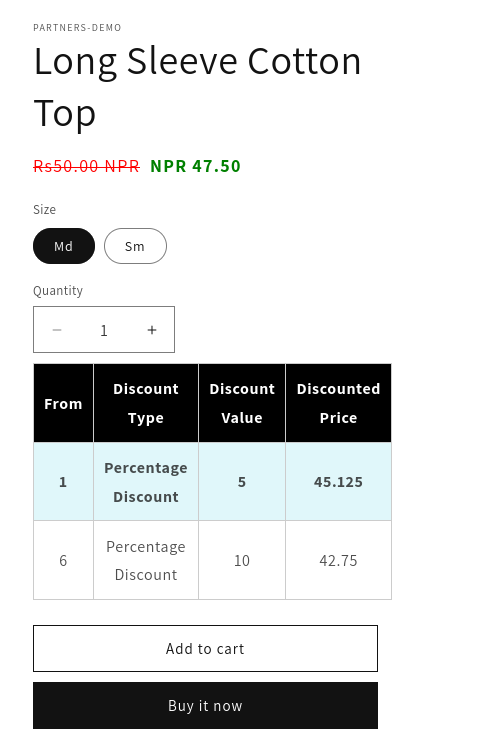
Quantity/Amount Break
Use Quantity/Amount Break to offer tiered discounts based on quantity or cart amount thresholds. This helps incentivize bulk purchases and drive higher order values.
Step 1: Create and Target Your Rule
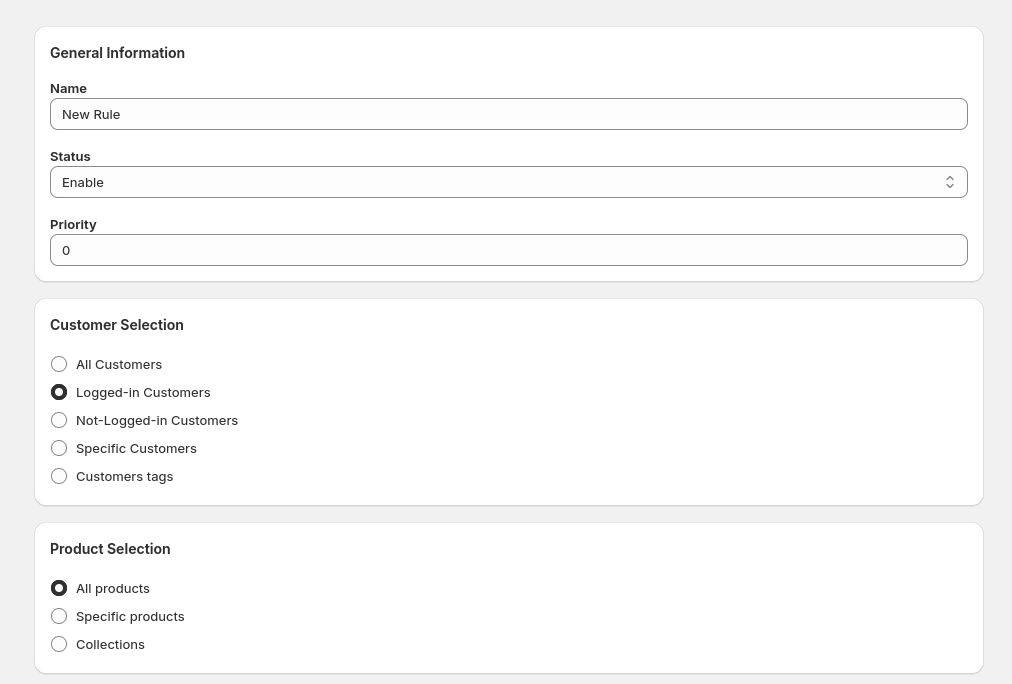
Go to the Quantity/Amount Break section from the sidebar and click on the Create New Rule button. Fill out general details, choose your target customers, and select the products to which this rule applies.
- General Info: Set a name, status, and priority for the rule.
- Customer Selection: Apply rules to all customers, logged-in users, or filtered by tags/IDs.
- Product Selection: Choose all products, specific products, or collections.
Step 2: Configure Break Rules
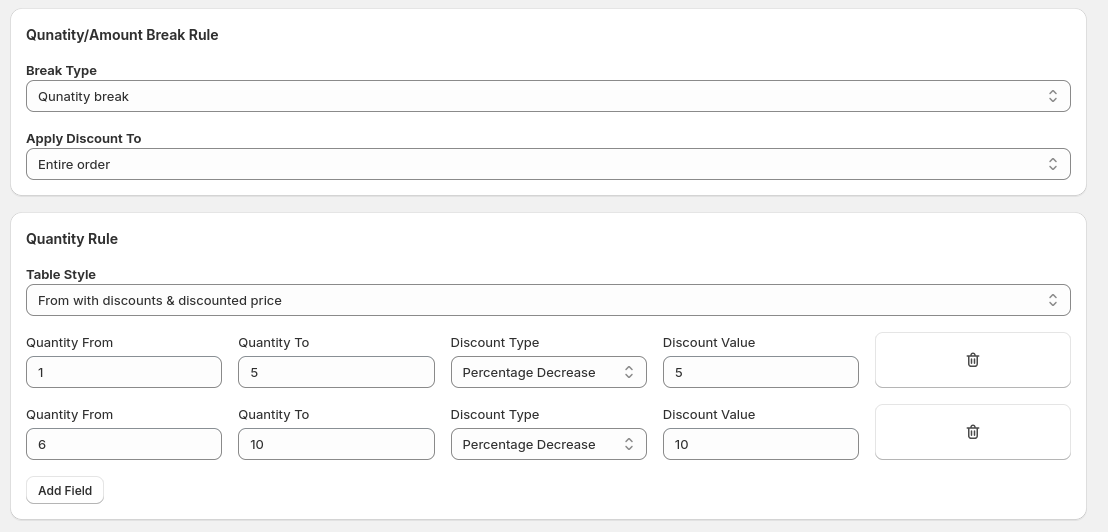
Define the discount logic using quantity or amount thresholds.
- Choose the break type: Quantity Break or Amount Break.
- Select a table style to show discounts on the storefront (6 styles available).
- Set the rules: define a range using From and To values, then choose the discount type (Fixed Price or Decrease by amount/percentage).
- You can add multiple ranges for progressive discounts.
Step 3: Set Rule Duration
Set a valid time window for when this rule will be applied.
- Choose the start and end date to automate rule activation.
Step 4: Test on Storefront
Enable and verify the feature before testing on your storefront.
- Enable Quantity/Amount Break under App Modules in the dashboard.
- Make sure the app embed is installed and active in Theme App Extension Configuration.
- Visit your storefront and check if the tiered pricing is being applied correctly.