reCAPTCHA Integration
Use Google reCAPTCHA to prevent spam submissions on your forms. Follow the steps below to generate your keys and add them into the app.
Step 1: Get reCAPTCHA Site and Secret Keys
- Visit the Google reCAPTCHA Admin Console.
- Log in with your Google account if you're not already logged in.
- Register a new site by entering a label (e.g., your store name).
- Choose the reCAPTCHA type — usually reCAPTCHA v2 (checkbox) or reCAPTCHA v3 (invisible).
- Enter your domain name (e.g.,
yourstore.com). - Accept the terms of service and click Submit.
- Once submitted, you will receive your Site Key and Secret Key.
Step 2: Add reCAPTCHA Keys to the App
To enable and use your own reCAPTCHA keys within the app:
- Go to the Forms section and either Create a new form or Edit an existing one.
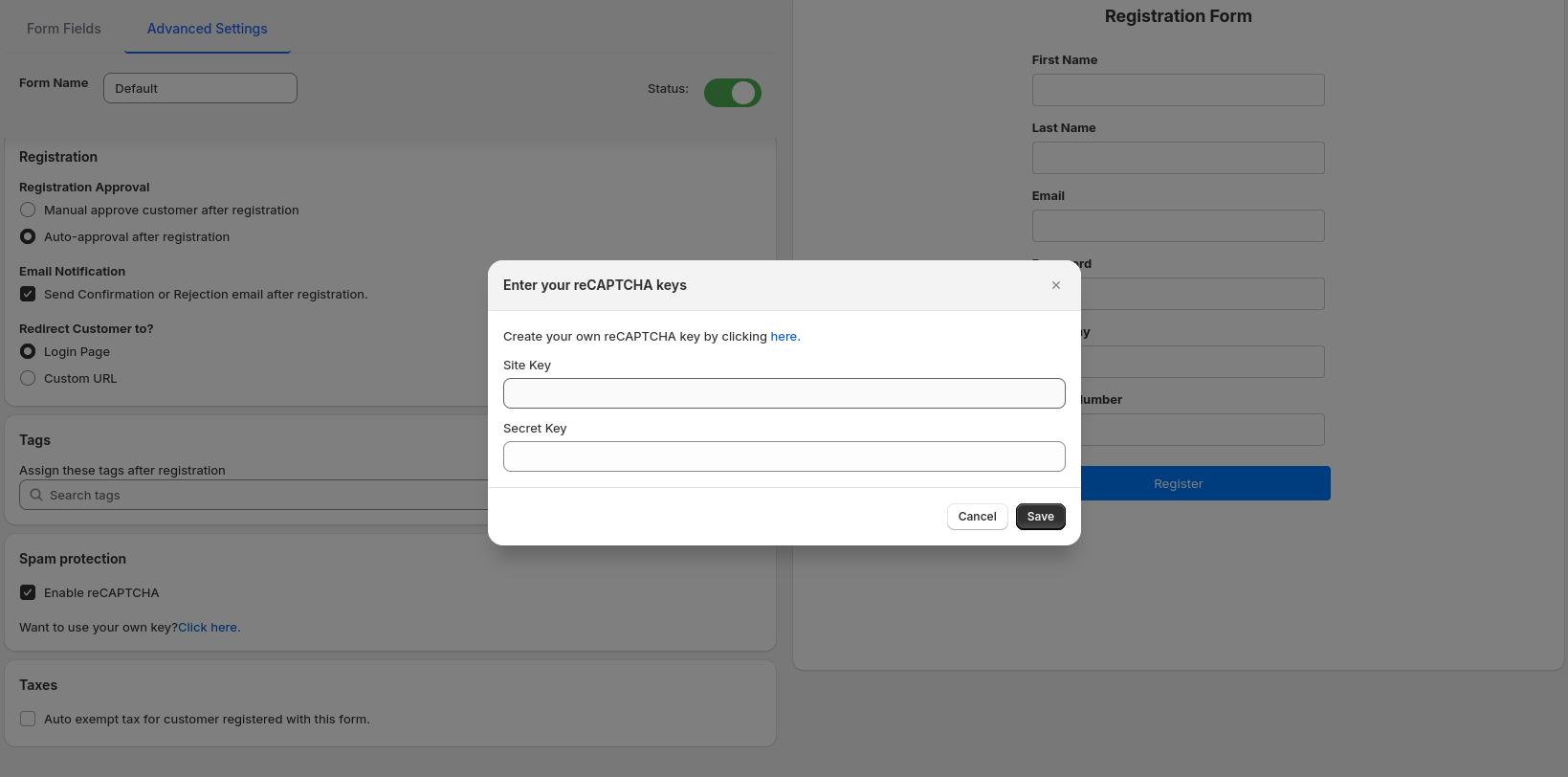
- Navigate to the Advanced Settings tab.
- Toggle the Enable reCAPTCHA option.
- You'll see a message: "Want to use your own key? Click here". Click on the Click here link.
- A popup will appear where you can enter your Site Key and Secret Key. Click Save after entering the values.