Order Limit
The Order Limit feature allows you to restrict how much a customer can purchase, either by item quantity or total cart amount. Ideal for wholesale control or exclusive campaigns.
Step 1: Create and Target Your Rule
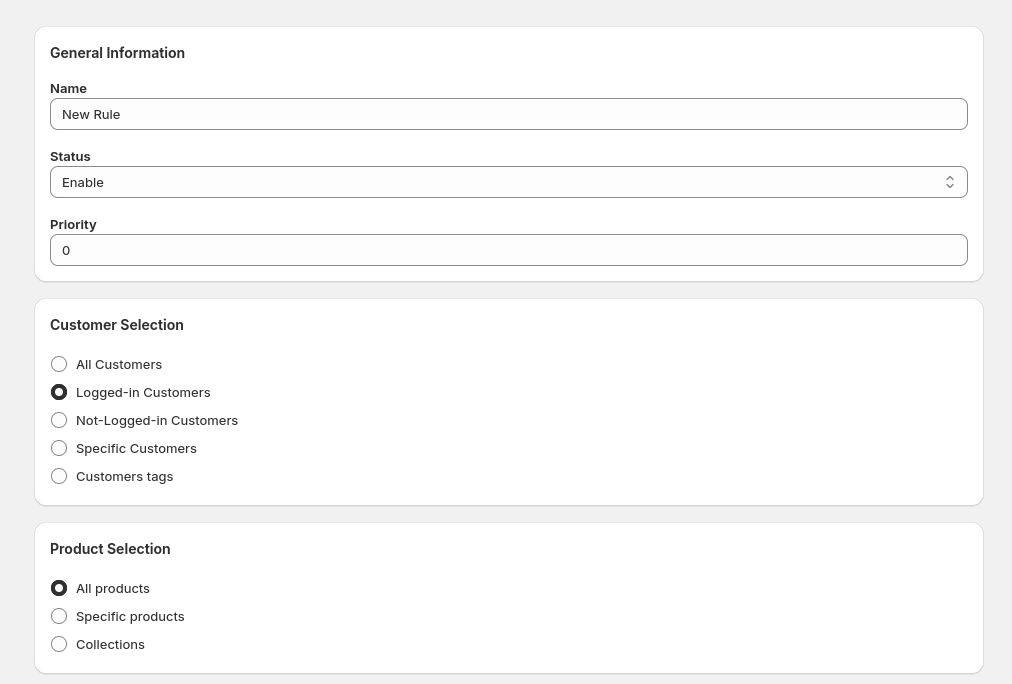
Go to the Order Limit section from the app sidebar and click Create New Rule. Add general info, choose customers, and target products.
- General Info: Enter a name, status, and priority for this rule.
- Customer Selection: Target all customers, logged-in users, or filter by tags or IDs.
- Product Selection: Apply the rule to all products, specific ones, or collections.
Step 2: Configure Order Limit
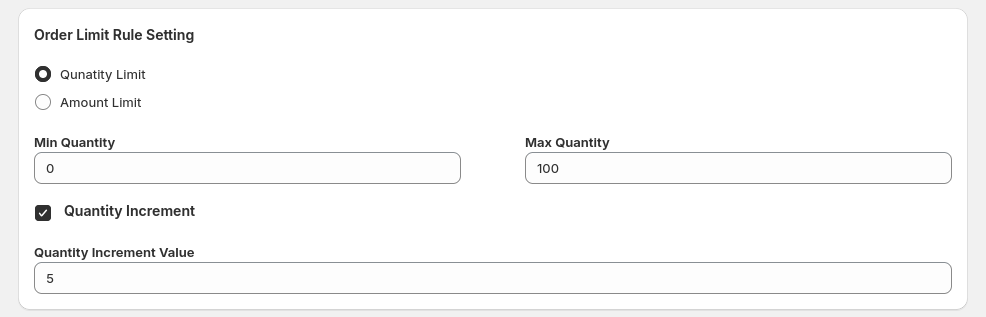
Set constraints on how much customers can order.
- Select limit type: Quantity or Amount.
- Set Minimum and Maximum allowed values.
- For Quantity Limit, you can also set quantity increments (e.g., allow only in multiples of 5).
Step 3: Set Rule Duration
Control when this rule becomes active by defining a date range.
- Use the start and end date to automate rule enforcement.
Step 4: Test on Storefront
Activate and validate your rule to ensure it works as expected.
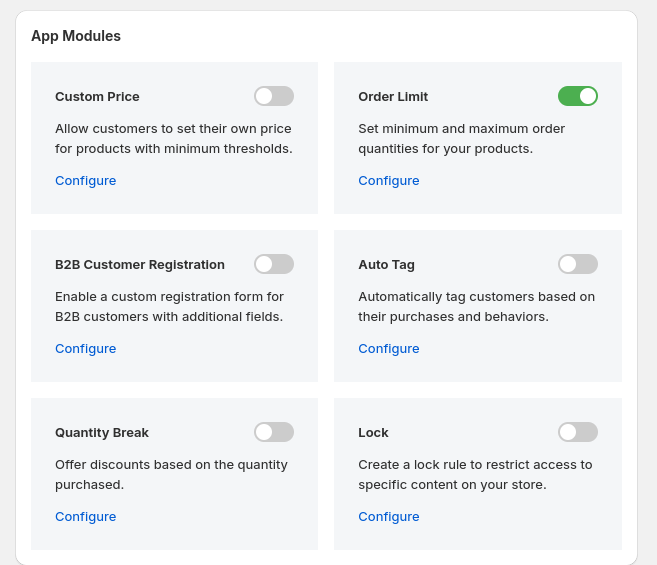
- Enable Order Limit from the App Modules section.
- Ensure the app embed is active under Theme App Extension Configuration.
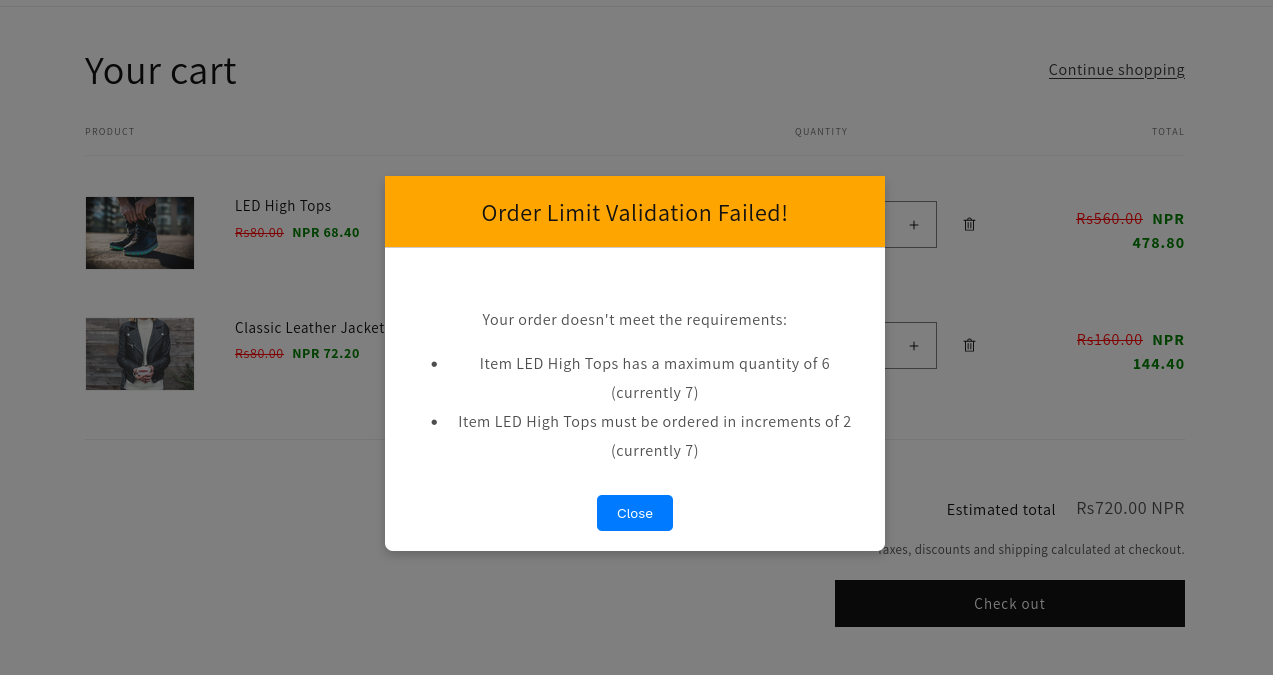
- Open your storefront and test the order limit functionality as configured.